
Mobile Apps (PWA) Support
ColibriPlus provides two tailored web applications: one optimized for mobile devices and another for desktop environments. Each offers a unique UI/UX designed to enhance the user experience on its respective platform. Both applications are included with ColibriPlus by default, requiring no additional setup or configuration.
Overview of PWA
ColibriPlus is a web-based application that leverages Progressive Web App (PWA) technology to deliver a native app-like experience. With PWA support, you can install ColibriPlus on your mobile device, enabling offline access, push notifications, and a seamless user experience without the need for a native app.
PWA support is included out of the box and can be enabled with minimal configuration.
Configuration
To allow users to install and use the ColibriPlus mobile Progressive Web App (PWA), simply enable the feature in your Admin Panel by navigating to the "Mobile App and PWA Settings" tab.
From this section, you have full control over your PWA configuration. You can customize the PWA manifest file, upload app icons, and edit the service worker JavaScript file to tailor the PWA experience to meet your branding and functionality needs.
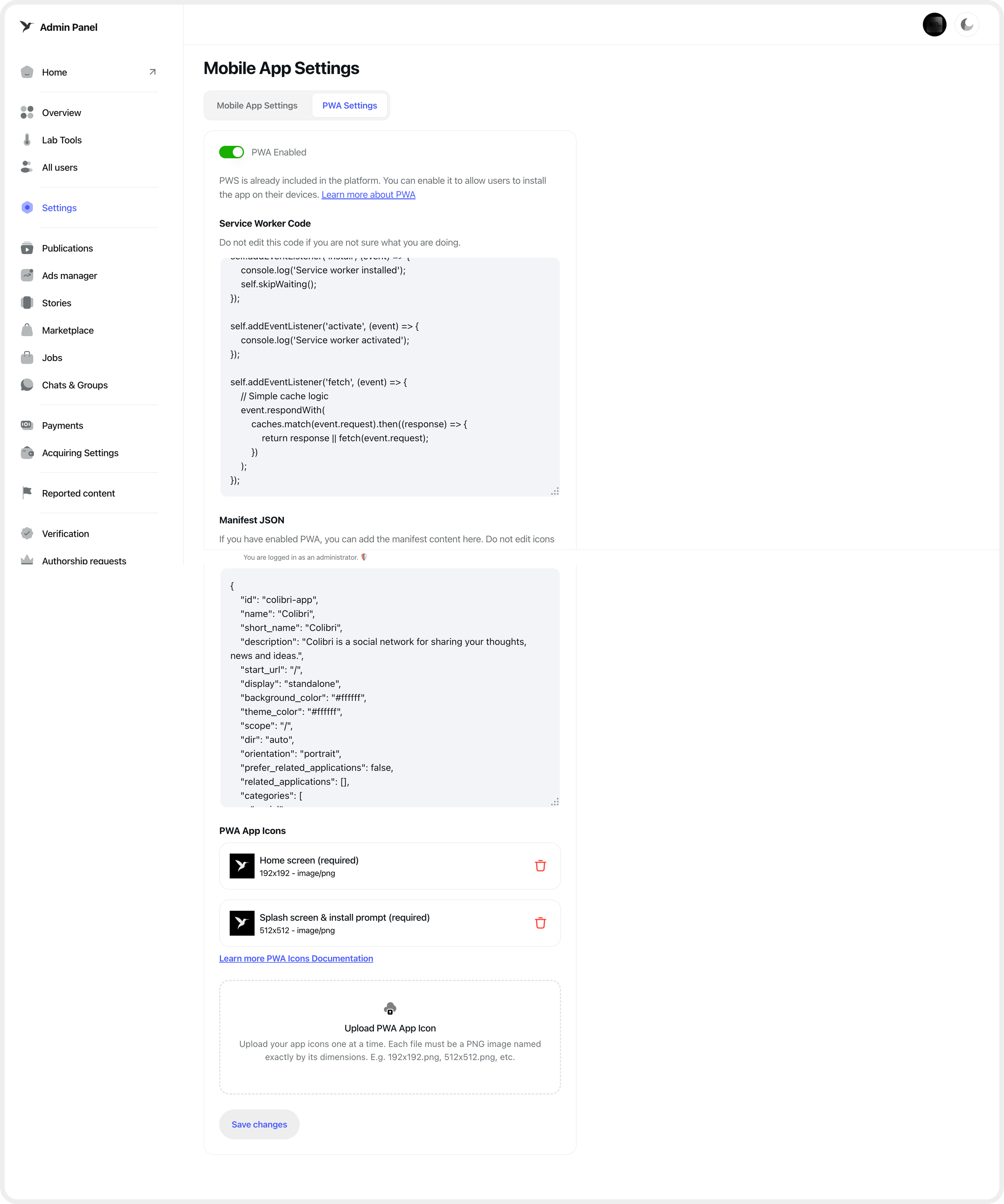
After updating the manifest, clear the cache and rebuild the frontend with the following commands:
php colibri cache:clear
php colibri optimize:clear
php colibri optimize
Installation
Once configured, ColibriPlus can be installed as a PWA on both Android and iOS devices, offering a native-like experience.
Android
Android devices support PWAs natively through Chrome. To install the PWA:
- Open the Chrome browser on your Android device.
- Navigate to the ColibriPlus website.
- Tap the three-dot menu in the top-right corner.
- Select Add to Home screen or Install app (label may vary).
- Confirm by tapping Install.
- The PWA will appear on your home screen and function like a native app.
iOS
iOS 18+ supports PWAs through Safari. To install the PWA:
- Open the Safari browser on your iOS device.
- Navigate to the ColibriPlus website.
- Tap the Share button (square with an upward arrow).
- Select Add to Home Screen.
- Customize the app name if desired, then tap Add.
- The PWA will be added to your home screen.
For further assistance, consult the official PWA documentation or contact the ColibriPlus support team.